
Accessibility Essentials
Accessibility Essentials
Get Started video tutorials FAQ

Title II Deadline Extended
As of April 20th, 2026, the Department of Justice has extended the deadline for Title II compliance to April 26th, 2027.Learn more about the deadline extension and how this impacts your courses.

Weekly Accessibility Office Hours
Join consultants from CTE & Digital Learning Technologies (DLT) each Thursday from 11AM–noon on Zoom to discuss your questions about how to make your Canvas courses meet Title II regulations! Join our virtual office here.
University Leadership Statement on ADA Regulations
Read the memo from University Leadership and the @theU article regarding mandatory accessibility requirements for digital course content.
What is Digital Accessibility?
"Web accessibility means that websites, tools, and technologies are designed and developed so that people with disabilities can use them. More specifically, people can:
-
- perceive, understand, navigate, and interact with the Web[, and]
- contribute to the Web."
– World Wide Web Consortium (W3C) Web Accessibility Initiative
When it comes to teaching, designing your Canvas content for accessibility isn't exclusively about supporting learners with disabilities and official accommodations. Making choices with digital access in mind creates a learning environment more conducive to learning for everyone!
Many Canvas courses present accessibility barriers that can make it challenging for some learners to acquire the same information, engage in the same activities, and receive the same services as their peers. The main digital accessibility challenge we must address is making content compatible with the assistive technologies our students may use.This is also a federally required mandate under Section 504 and 508 of the Rehabilitation Act and Title II of the ADA.
These aren't only specialty tools used for specific impairments, like screen readers... Assistive technologies are all around us! Many of these tools help everyone, including those who are not disabled, by providing content in different formats that may be easier for some to understand
and use. The more ways students can engage with our courses, the better!

- See a demonstration of one of the most popular screenreaders, JAWS.
- Watch someone navigate a webpage with another popular screenreader, NVDA.
- Learn how text is translated to refreshable braille displays.
- Try out Microsoft Immersive Reader, which is now available directly inside Canvas.
- Find out how to navigate a website with just your keyboard.
- Learn more about digital notetaking applications and smart notebooks.
- See how students use a variety of other tools in the classroom and beyond.
“Doesn’t the Center for Disability and Access (CDA) take care of disability accommodations for students? Why do I need to update my course content beyond what those with accommodations need?”
You likely work with more students who have accommodation needs than you think.A significant amount of students do not (or cannot) disclose their disability status to the university.This may be influenced by many factors: lack of adequate mental healthcare coverage, lack of funds to pursue extensive diagnostic testing, fear around having HIPAA-protected information leaked in the future, fear of stigma, or a variety of other personal reasons.
As a campus community, our goal is to make educational opportunities at the University of Utah more accessible for all students, regardless of their disability status. As educators at the U, our responsibility is to demonstrate a good faith effort in pursuit of that goal, and to alleviate the pressure on students to bear these challenges alone.
What are the requirements?
The Web Content Accessibility Guidelines (WCAG) are a set of international standards used to gauge how accessible web content is to disabled users and those using assistive technologies.
According to updated Title II regulations for the Americans with Disabilities Act (ADA), federal lawrequires educational content that is actively used and made available to students digitally at the University of Utah to meet WCAG 2.1 AA standards by April 26th, 2027. Learn more about this new rule from the Department of Justice Civil Rights Division.
Meeting these standards is simpler than you'd think! To get started, review your Canvas course material with these 5 focus areas* in mind:
- 1. All images, graphs, & figures included in the course have alternative text available or are marked as decorative.
- 2. All videos have closed captions and/or transcripts available.
- 3. All colorful content is high contrast, and color alone is not used to emphasize information (e.g., important text is not indicated by being highlighted in a color).
- 4. Modules, files, and links used throughout the course have descriptive names (e.g., "Assignment 1" or "Marriott Library", not "Thing.pdf" or "Click Here").
- 5. Official textbooks, high quality PDFs (i.e., text is selectable and can be copied/pasted), and/or text-only documents that are compatible with reading assistance software are provided for all readings.
* The focus areas listed above are not a comprehensive list of all WCAG 2.1 AA requirements. Learn more about the detailed compliance requirements from W3.

Not sure how to do this? Learn how to update your materials with us!
For technology help, please contact Digital Learning Technologies (DLT) at classhelp@utah.edu.
What is Alt Text?
Alternative text (also known as alt text) is a written description of a non-text element on a web page, like a picture or a chart. Alt text is displayed when that element cannot be loaded, or when a user is navigating with a screen reader software. It explains what the element is, and why it is there.
A few important things to keep in mind when writing alt text:
- Learn more about how to write quality alternative text.
- Add alt text to all images, except images that are just there to make your page look nicer– mark those as decorative.
- Descriptions should be short (i.e. less than 240 characters) and straightforward.
- If your image is a graph, infographic, or other complex content, it needs both a short and long description. Discover information on writing alt text for complex images like data visualizations and more.
- Do not start your description with “image of” or “photo of”.

How to Complete Alt Text Edits
What do videos need to be accessible?
Videos need to have closed captions in order to be considered accessible. It is preferred if a transcript with visual descriptions is also made available for each video, but captions are the best place to start!

Did you know that Kaltura has an automatic captioning feature available and viewers can download transcripts for themselves?
Also known as MediaSpace and connected to My Media within Canvas, Kaltura is the media streaming platform integrated with Canvas here at the University of Utah. In other words: think YouTube, but just for the U! It is recommended that you use Kaltura to upload any videos to Canvas.
Kaltura is simple to use, has an unlimited file size limit, and keeps your video resources private and safe from piracy. It also gives you more in-depth insight into whether your students are even watching them.
You can upload your own files and also set Zoom recordings to automatically upload. You can even edit your videos online!
While YouTube is a great platform to find great instructional videos for your courses, Kaltura is your best bet to ensure your videos are accessible– and the best part? You can import YouTube videos directly into Kaltura in just a few clicks!
Make sure to review your video captions. Captions are autogenerated, so some words may be jumbled up or misspelled– you can edit captions for your video easily.
If you want to go above and beyond, these captions can then be used to generate a transcript. You can view the video transcript alongside the video in your browser, or download the transcript as a file.
If you would like to add visual descriptions to your transcript file, check out these tips for writing descriptions from W3. You can then share this transcript with your students via Canvas!
How to Complete Video Edits
How can color be used accessibly?
Color is a great way to make your content look exciting, and can be helpful to organization tool. However, colors don't look exactly the same to everyone– so while color-coding content might work wonderfully for you, it might not always be the best method to communicate with your students.
That doesn't mean you can't use color! It should be used intentionally and appropriately. If you are hoping to add some color to your course, there are two rules to keep in mind:
1. Color cannot be used alone to convey information.

it’s important that learners with vision impairments or differences (e.g., color blindness) can still see and understand everything and those using assistive technologies don't miss important details.
2. Colors need to have an appropriate contrast ratio.

On average, it's best to aim for a 4.5:1 ratio between the text and background color. The contrast ratio is a comparison between the brightness of the lighter color and the brightness of the darker color:
1:1 ratio = No contrast, everything appears as the same color.
4.5:1 ratio = The lighter color is 4.5 times brighter than the darker color.
21:1 ratio = Maximum contrast, e.g., white text on a black background.
A few tips for when you add color to your Canvas course:
- Use consistent formatting throughout your content so the information students need is always in the same place.
- Use alternative text formatting options to emphasize text, like bold or italic font styles.
- If there is important text in any graphics you choose to include in your course, ensure you add quality alt text.
- Test your color palette for accessible combinations with:
- Test what it’s like to view your content through a color blindness simulator.
How to Complete Color Edits
What is text formatting?
When writing– whether it’s on a Canvas page or in a word processing software– using headers, lists, and other text formatting options is important to keep your writing organized, easy to read, and compatible with assistive tech tools.
Headers, like chapters in a book, help readers to navigate the text more easily– something very important for learners using screen reader applications.
Imagine… You are listening to an audio book. You aren’t sure you heard a paragraph correctly, and need to go back and listen to that single section to double check… However, in order to listen to that section again, you have to listen to the whole book from the start. What a pain!
For learners who use screen readers, formatting is essential. By using text formatting options like headers and lists, students using assistive tech can navigate through a page quickly, allowing them to jump to specific areas of content without needing to read the entire document.
Using text formatting options is also helpful to encourage all students to use effective scholarly reading strategies, like scanning and skimming texts to look for key topics, terms, and citations before close reading.
A few important things to keep in mind when it comes to text formatting:
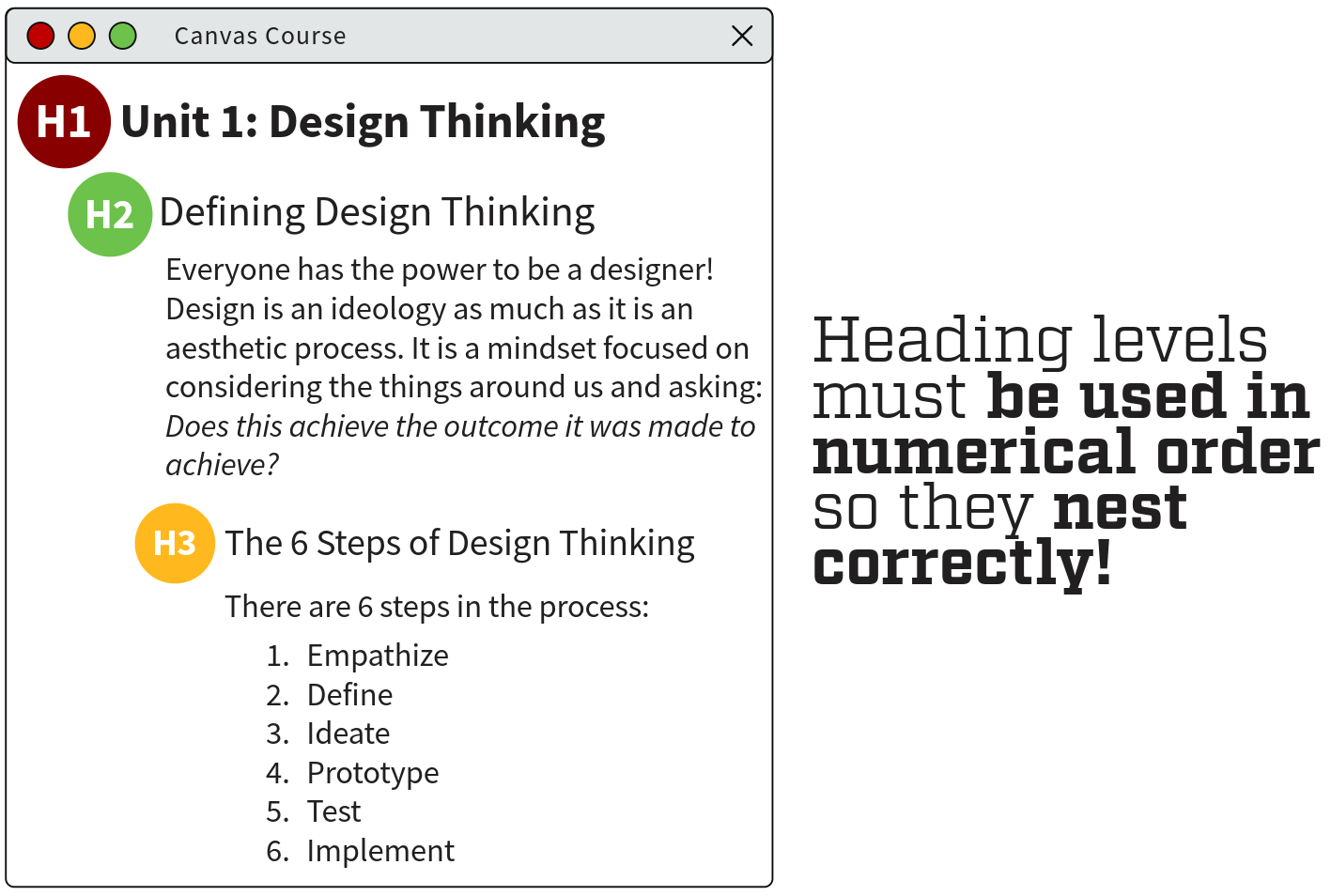
- Making heading text (e.g., chapter titles, page sections, or subsections) bold, italic, or a larger font isn’t sufficient for screen readers to identify headings. Use the formatting options available in the toolbar in Canvas or any word processing software you are using.
- Headings should be placed in numerical order. Your page should start with Heading 1 (H1, usually the title of the page), and subsequent headings should nest from there (e.g. H2, then H3, then H4, etc.).
- Do not choose what heading level to use based on visual style. You can always change the visual style of the heading, but your headings must be nested in the correct order.
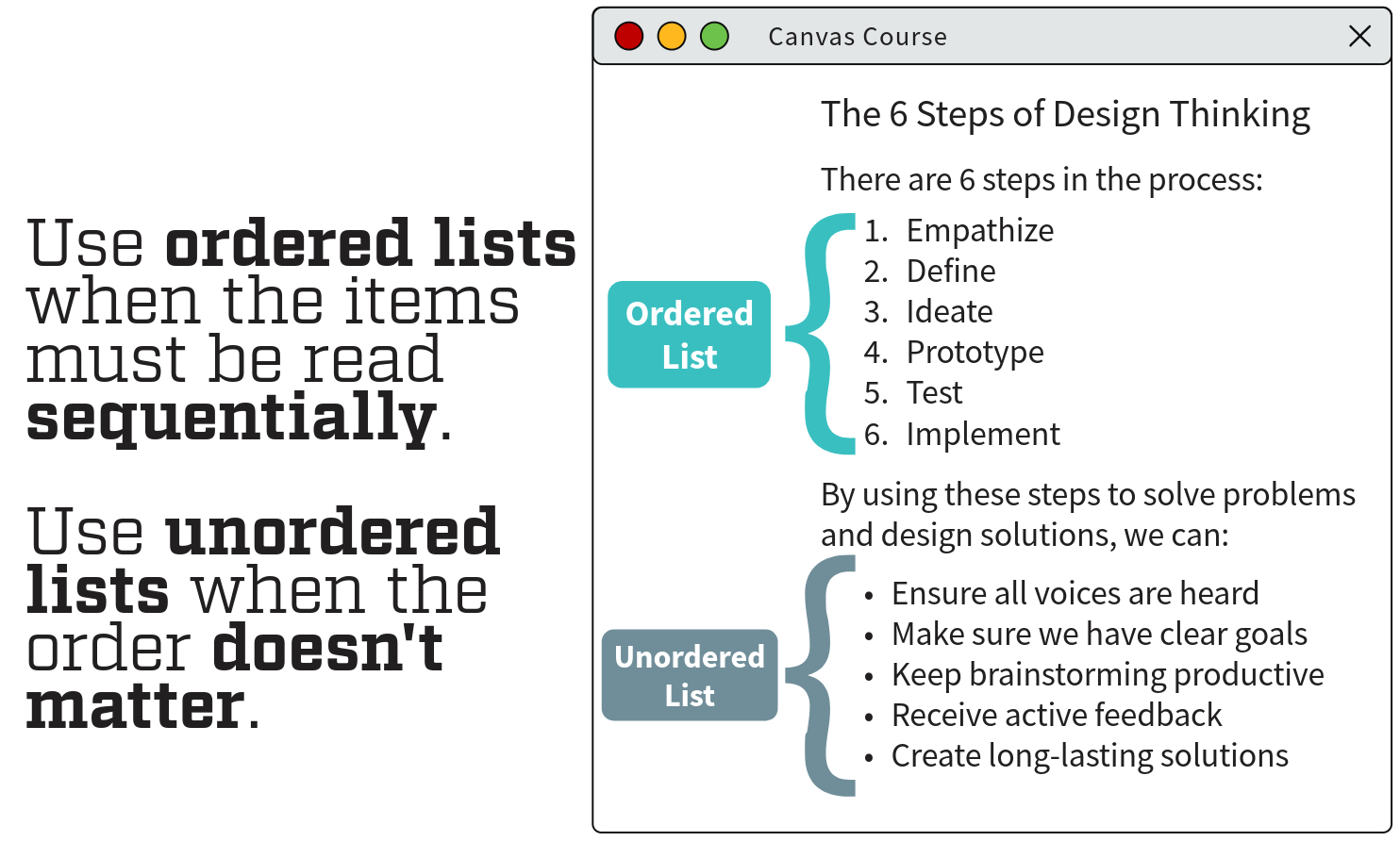
- Use unordered lists (i.e., bullet points) when creating a list of related items that have no specific order.
- Use ordered lists (i.e., numbered list) when creating a list of related items that should be read in sequence.
How to Format Text
How should I format links and file names?
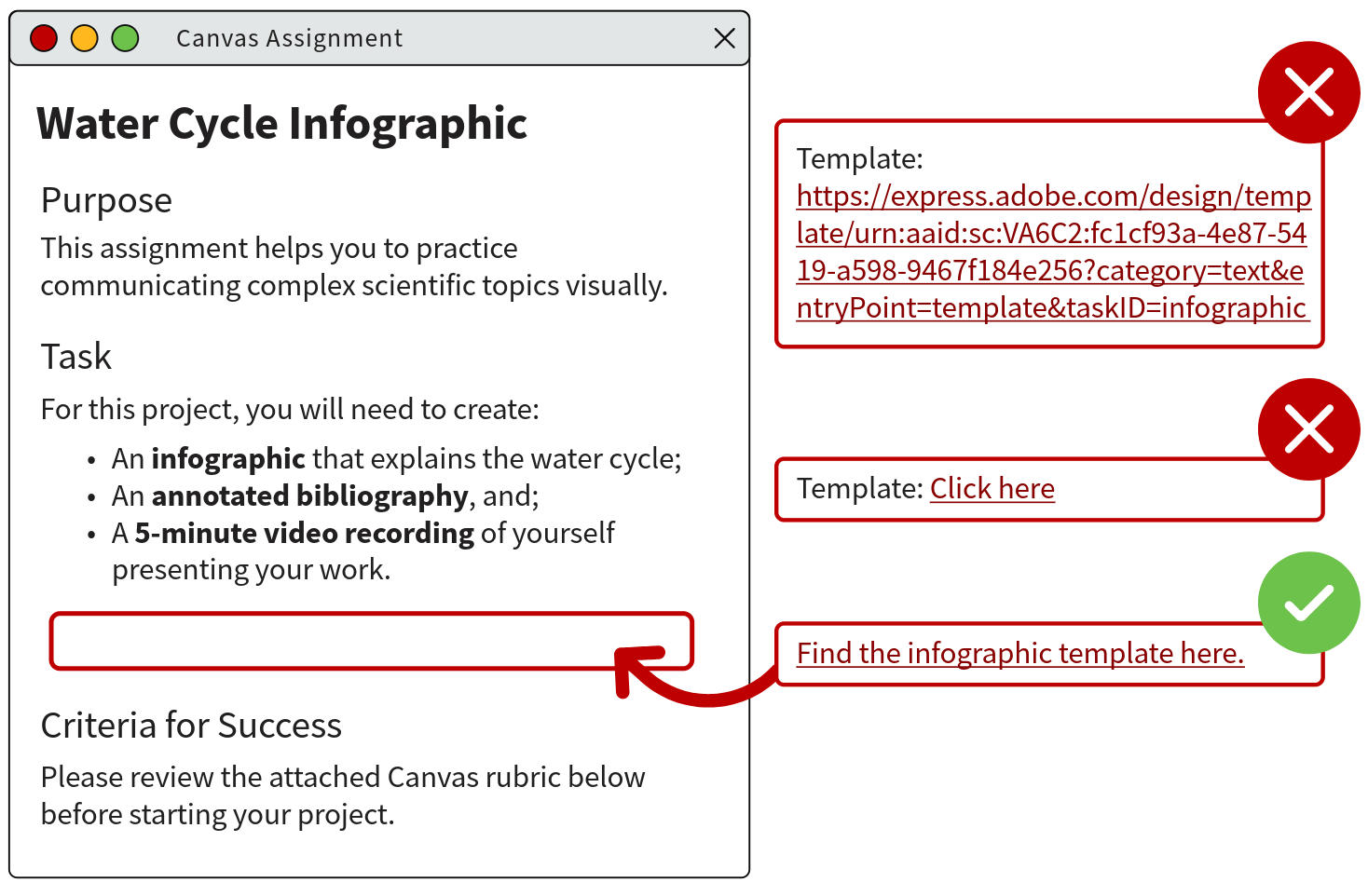
Hyperlinks allow us to weave together several sources of information, files, and tools online. Assistive tech tools can provide learners with a list of the links on a web page or document, making it simple to get to where the user needs to go quickly. To make sure this is possible though, links and file titles need to be descriptive!
A few tips for how to include accessible links and files in your content on Canvas and beyond:
- Ensure your link text makes sense out of context and clearly indicates what the link leads to. Avoid long URLs or phrases like “Click Here”, “Read More”, or “Link”.
- Retitle files that will be linked throughout your course with meaningful names. Create a naming protocol for your uploaded files when possible.
- Link titles should be descriptive and as concise as possible. While there is no minimum or maximum limit to how long link text can be, keeping it short is more user-friendly.
- Links should be visually identifiable. Links are generally underlined and in a different color– avoid changing the visual style of links (e.g., removing underline, making the text the same color as the rest of regular text) or changing the visual style of regular text to look like a link (e.g., underlining text, making the text red).
How to Edit Links & File Names
What are PDF documents?
In most courses, educators provide reading or note-taking materials for students in Canvas– everything from academic articles to lecture slides. Many of these files are shared as Portable Document Files, or PDFs.
PDFs act like an interactive image of a printable page– they retain document layouts elements set in a word processing software (i.e., text styles, fonts, and graphics inserted in Word, PowerPoint, etc.) so users can view and use the same file across different platforms. They’re convenient for many reasons: file sizes are small, they are easy to annotate, and they are compatible with almost any device! However, PDFs do not always work well with assistive technologies.
PDF documents are the most common filetype that flagged for accessibility issues. Fixing PDF documents to ensure they are compatible with assistive tools can also be a time-consuming, difficult process. So what should we do?
How do I ensure my PDF is accessible?
First, we recommend getting rid of any files that are not being actively used in your current course using TidyUp. Learn more about TidyUp from Digital Learning Technologies. If you are worried about losing any of these files for the future, create a copy of your course before getting started.
Once you've cleared things out, there are a few ways to fix your documents. The method depends on whether you created the document (e.g., lecture notes, slides, worksheets, etc.) or if it was created by someone else (e.g., textbooks, academic articles, etc.).
Content Published By Someone Else
If you are sharing a document that was not created by you, you have several options to check before you need to fix your PDFs on your own!
- Start with the Marriott Library’s Course Materials.
- The Marriott Library Course Reserve services are now offered through Course Materials, powered by Leganto. Course Materials allows you to connect library owned content directly to your Canvas course, request the purchase of new material, and seamlessly include external resources into one list that you can link to your weekly modules and assignments in Canvas.
- For further questions, contact your Course Librarian or reach out to mlib-reserve@lists.utah.edu.
- Search for alternative digital formats online.
- There are many files available via Open Educational Resource (OER) libraries online. Search for higher quality files available online and learn more about OER from the Marriott Library.
- Use UDoIt in Canvas to convert the file to a Canvas page.
- Use UDoIt in Canvas to replace it with a new accessible version.
- Edit the document yourself.
- First, try to get a good scanned copy of the content. That old, grainy scan of a book with coffee stains, hand-written notes in the margins, and dog-eared pages will be difficult to fix! If you can get a clear scan, half the battle is complete. Try using the scanners available at the Marriott Library!
- Edit your document using Adobe Acrobat, a PDF document viewing and editing tool. It can be used to make PDFs meet common accessibility standards using some of the tools in the program. Learn about all of the accessibility editing tools built into Acrobat.
- Adobe Acrobat can be challenging to get started with. If you cannot fix certain elements in your document, contact Digital Learning Technologies at classhelp@utah.edu for hands-on assistance.
Shifting to EPUB Files
- When assigning reading to students, reference chapters and/or sections of the text instead of page numbers.
- Check out EBSCO's recommendations on how to cite EPUBs in academic writing.
Original Content
- Use UDoIt in Canvas to convert the file to a Canvas page.
- Ensure your original Word or PowerPoint file has been edited for accessibility.
- Add alt text to all graphic elements, use color appropriately, format text elements properly, include links with descriptive titles, and title the file itself appropriately. Follow all of the advice shared in the sections above to get started!
- Post the original Word or PowerPoint file directly to Canvas.
- Students can download alternative file types (e.g., PDFs) themselves that will retain any accessibility edits you completed in the original program by using Ally.
- If you choose to post a PDF, use UDoIt in Canvas to replace it with a new accessible version.
- Check it via Adobe Acrobat before uploading to Canvas.
- Learn how to use the Accessibility Checker in Adobe Acrobat Pro. If you cannot fix certain elements in your document, contact Digital Learning Technologies at classhelp@utah.edu for hands-on assistance.
How to Complete PDF Edits
- Learn how to improve course accessibility using the CidiLabs Accessibility Suite
- Discover the best practices for improving different file types from Digital Learning
Technologies:
- Overview & Best Practices for Improving Accessibility of Word Documents
- How to Use the Accessibility Checker in Microsoft Word
- Overview & Best Practices for Improving Accessibility of PDF Documents
- How to Use the Accessibility Checker in Adobe Acrobat Pro
- Overview & Best Practices for Improving Accessibility of PowerPoints
- How to Use the Accessibility Checker in Microsoft PowerPoint
- Learn about all of the accessibility editing tools built into Acrobat.
- Use Optical Character Recognition (OCR) to make text selectable.
- Check out a walkthrough of updating a PDF in Acrobat.
- Discover how to clean up a poorly scanned document.
- Learn more about document structure, tagging, and how to tag a table.
Creating an Update Plan
Finding a good place to start is one of the hardest parts of beginning a new, complex project. It can feel overwhelming, especially when there are a lot of elements and a deadline to consider. It's important to start by breaking this work down into manageable parts!
Setting consistent, achievable goals for yourself is key to fully overhauling your courses to reach compliance. To make this simple, we've created a planning template to get you started!
Download sustainable update plan (.docx)
Download our Sustainable Update Plan template (.docx) and open in Word or your word processing software of choice. Edit the document as needed.
Beyond the Basics
We hope that these guides and resources will help you to build the skills and confidence you need to update your courses and support your students! As with any large task though, there can be bumps in the road– we're here to help find answers with you.
According to Title II regulations for the Americans with Disabilities Act (ADA), federal law requires all educational content made available to students digitally at the University of Utah to meet WCAG 2.1 AA standards to ensure compatibility with assistive technology tools.
If you find that any content throughout this course is not compatible or need additional assistance interpreting any of the content throughout this course, please contact your instructor. For further support, contact the Center for Disability and Access:
Center for Disability & Access
801-581-5020
disability.utah.edu
Third Floor, Room 350
Student Services Building
201 S 1460 E
Salt Lake City, UT 84112
In the final rule updating Title II requirements for digital content, the Department of Justice identified a variety of limited situations in which content is not required to meet WCAG 2.1 Level AA standards.
For educators, these exceptions include:
- Content that is kept as part of an archive;
- These materials are kept only for reference and records and are clearly designated as archival (e.g., courses from prior semesters). This exception only applies to content added to a Canvas course before April 26th, 2026.
- Content provided by students, and;
- Student submissions are not required to meet WCAG requirements.
- Content for individual users.
- This includes private materials provided to specific users (e.g., assignment feedback, lesson planning documents shared between co-teachers).
There are additional exceptions outlined that apply more directly to other public entities. Learn more about all of the Title II exceptions from the Department of Justice.
This is only one interpretation of these exceptions, not legal advice. Please contact the Department of Justice’s ADA Information Line or search the ADA National Network resources for further information.
Canvas accessibility is just the start to building an accessible classroom. Interested in learning more?
CTE has a variety of recommended strategies and teaching techniques that can help you set up your students for success! Two methods we highly recommend digging into:
- Universal Design for Learning
- Universal Design for Learning (UDL) is a teaching framework that supports learner autonomy while maintaining the same learning outcome expectations for all students in the classroom.
- Transparent Teaching
- The Transparency in Learning and Teaching (TILT) framework provides a foundation for classroom communication that will help you to improve learner motivation, understanding, and success.
Have a question about a complex topic? Review our FAQ section!
Want to learn more about the ADA?Learn all about how Title II regulations protect the rights of disabled community members here.
Have further questions about the legal requirements of Title II? Call the Department of Justice’s ADA Information Line or check out the ADA National Network.
The National Network includes ten regional centers that provide ADA technical assistance to educators, admin, and individuals with disabilities. One toll-free number will connect you to the center in your region: 800-949-4232 (Voice and TTY).
Additional Information
Find other resources available from groups across the university!
Want to learn more about ways to better incorporate accessibility into your personal pedagogical approach? Reach out to us in CTE!
Contacts
- Jane Price
Coordinator, Pedagogies of Belonging
she/her, cte@utah.edu - Audra Carlisle
Instructional Systems and Operations Coordinator
she/they, cte@utah.edu
Resources
Need hands-on help to navigate the tech tools available to update your content? Reach out to UIT's Digital Learning Technologies (DLT) team!
Contacts
To submit a help request, email classhelp@utah.edu!
Resources
Interested in finding more accessible formats of your course readings? Contact the Marriott Library about Course Materials!
Contacts
- Rachel Haisley
Course Materials Program Manager
she/her, mlib-reserve@lists.utah.edu
Resources
Interested to learn more about the Center for Disability and Access (CDA) and the resources they provide for students and faculty? Contact CDA!
Contacts
- Christine Anderson
Director
she/her, canderson@sa.utah.edu - Megan Fairchild
Associate Director for Faculty Outreach
she/her Megan.Fairchild@utah.edu
Resources
University professionals from UIT and University Marketing and Communications (UMC) are managing compliance with federal regulations for all externally facing websites for departments and colleges.
Contacts
For more information, reach out to the campus digital teams and webmasters who have helped you set up your website:
- Barb Iannucci
University Information Technology
barb.iannucci@utah.edu - Sravi Garikipati
University Marketing and Communications
sravi.garikipati@utah.edu