
Qualtrics Dashboard Export Help
How to Export/Download a Dashboard view
Qualtrics does not provide a way to download reports in bulk. To create a PDF export of student feedback results, you will need to follow these steps, using filters to filter the dashboard to the desired instructor(s) and section(s) for each export.
1. Access the dashboard. Visit this resource for help accessing the dashboard.
2. Use Filters to select the Instructor(s) and course(s) you want to export. The instructor(s) and course(s) will appear in the Response Rate dashboard widget.

3. Click the Download button in the top-right of the dashboard page.

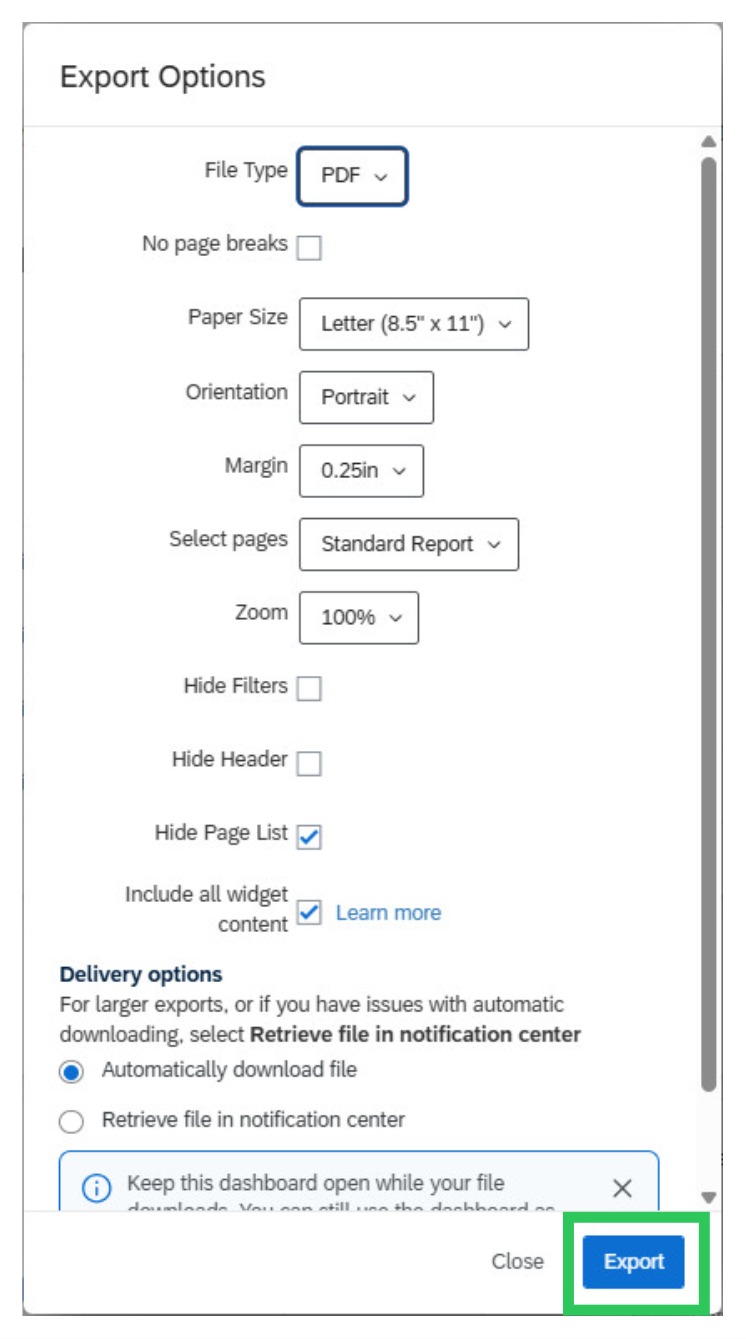
4. On the next screen, click Export. You do not need to change any settings. Please note: you need to keep the Dashboard open while the download completes. This can take up to several minutes for each download.
5. You will need to repeat this process for each individual instroctor or course you want to download.